CLI


This library includes a powerful command-line interface (CLI) for interacting with ONVIF devices directly from your terminal. It supports both direct command execution and an interactive shell mode, providing a flexible and efficient way to manage and debug ONVIF devices.
Info
The CLI is automatically installed when you install the onvif-python see Installation.
This feature has been available since onvif-python version >=0.1.1.
Features
- Device Discovery: Automatic ONVIF device discovery on local network using WS-Discovery protocol.
- Interactive Shell: A user-friendly shell with tab completion, command history, and colorized output.
- Direct Command Execution: Run ONVIF commands directly from the terminal for scripting and automation.
- Services Discovery: Automatically detects available services on the device.
- Connection Management: Supports HTTP/HTTPS, custom timeouts, custom auth transport (WS-UsernameToken or HTTP Digest) and SSL verification.
- Data Management: Store results from commands and use them as parameters in subsequent commands.
- Cross-Platform: Works on Windows, macOS, Linux, and Raspberry Pi.
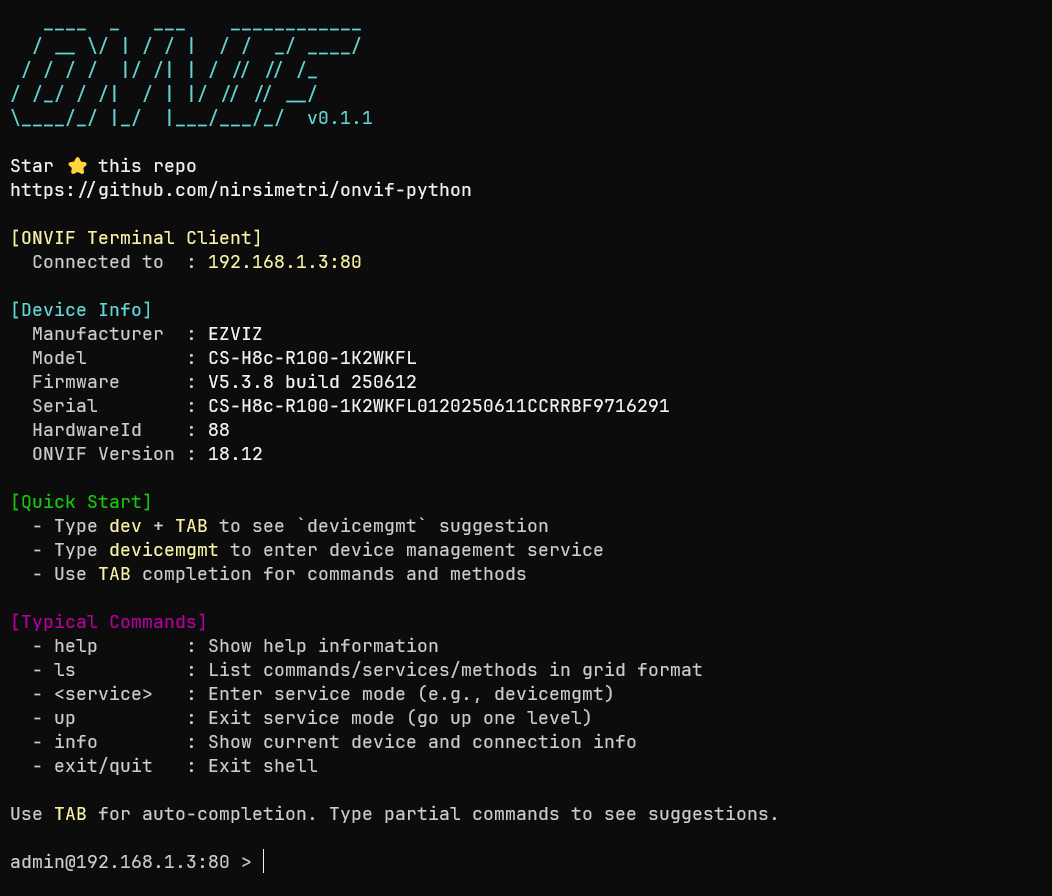
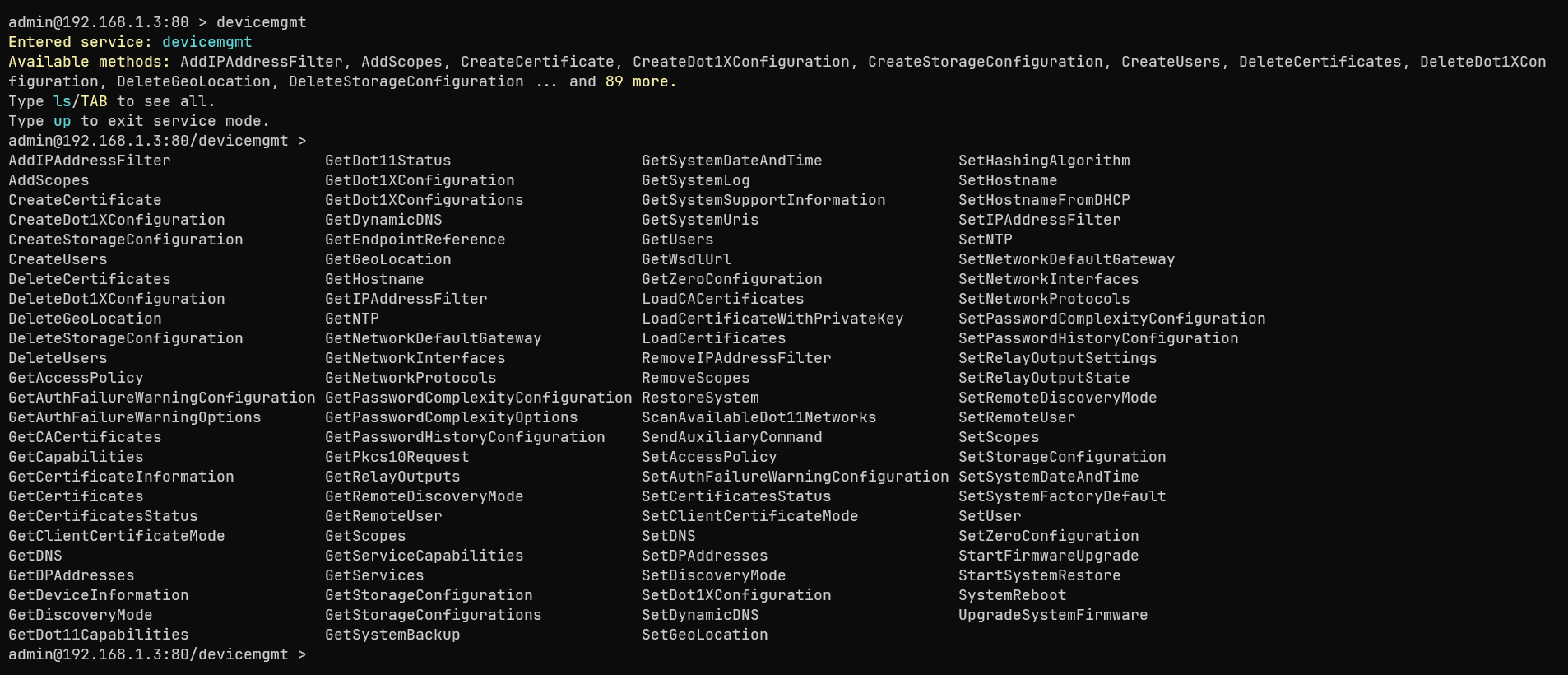
Screenshoot
|
|
| Onboarding | List available operations |
|---|
Help Command
Direct CLI
usage: onvif [-h] [--host HOST] [--port PORT] [--username USERNAME] [--password PASSWORD] [--discover] [--filter FILTER] [--interface INTERFACE] [--discovery-timeout DISCOVERY_TIMEOUT] [--search SEARCH]
            [--page PAGE] [--per-page PER_PAGE] [--timeout TIMEOUT] [--digest] [--https] [--no-verify] [--no-patch] [--interactive] [--debug] [--wsdl WSDL] [--cache {none,mem,db}]
            [--health-check-interval HEALTH_CHECK_INTERVAL] [--output OUTPUT] [--version]
            [service] [method] [params ...]

ONVIF Terminal Client — v0.4.0
https://github.com/nirsimetri/onvif-python

positional arguments:
  service               ONVIF service name (e.g., devicemgmt, media, ptz)
  method                Service method name (e.g., GetCapabilities, GetProfiles)
  params                Method parameters as Simple Parameter or JSON string

options:
  -h, --help            show this help message and exit
  --host HOST, -H HOST  ONVIF device IP address or hostname
  --port PORT, -P PORT  ONVIF device port (default: 80)
  --username USERNAME, -u USERNAME
                        Username for authentication
  --password PASSWORD, -p PASSWORD
                        Password for authentication
  --discover, -d        Discover ONVIF devices on the network using WS-Discovery
  --filter FILTER, -f FILTER
                        Filter discovered devices by types or scopes (case-insensitive substring match)
  --interface INTERFACE, -if INTERFACE
                        Specify network interface IP for discovery (default: auto-detect)
  --discovery-timeout DISCOVERY_TIMEOUT, -dt DISCOVERY_TIMEOUT
                        Discovery timeout in seconds (default: 4)
  --search SEARCH, -s SEARCH
                        Search ONVIF products database by model or company (e.g., 'c210', 'hikvision')
  --page PAGE           Page number for search results (default: 1)
  --per-page PER_PAGE   Number of results per page (default: 20)
  --timeout TIMEOUT     ONVIF connection timeout in seconds (default: 10)
  --digest              Use HTTP Digest instead of WS-UsernameToken
  --https               Use HTTPS instead of HTTP
  --no-verify           Disable SSL certificate verification
  --no-patch            Disable ZeepPatcher
  --interactive, -i     Start interactive mode
  --debug               Enable debug mode with XML capture
  --wsdl WSDL           Custom WSDL directory path
  --cache {none,mem,db}
                        Caching mode for ONVIFClient (default: db). 'db': disk-only, 'mem': memory-only, 'none': disabled.
  --health-check-interval HEALTH_CHECK_INTERVAL, -hci HEALTH_CHECK_INTERVAL
                        Health check interval in seconds for interactive mode (default: 3)
  --output OUTPUT, -o OUTPUT
                        Save command output to file. Supports .json, .xml extensions for format detection, or plain text. XML format automatically enables debug mode for SOAP capture.
  --version, -v         Show ONVIF CLI version and exit

Examples:
  # Product search
  onvif --search c210
  onvif -s "axis camera"
  onvif --search hikvision --page 2 --per-page 5

  # Discover ONVIF devices on network
  onvif --discover --username admin --password admin123 --interactive
  onvif media GetProfiles --discover --username admin
  onvif -d --interface 192.168.1.77 -i

  # Discover with filtering
  onvif --discover --filter ptz --interactive
  onvif -d -f "C210" -i
  onvif -d -f "audio_encoder" -u admin -p admin123 -i

  # Direct command execution
  onvif devicemgmt GetCapabilities Category=All --host 192.168.1.17 --port 8000 --username admin --password admin123
  onvif ptz ContinuousMove ProfileToken=Profile_1 Velocity={'PanTilt': {'x': -0.1, 'y': 0}} -H 192.168.1.17 -P 8000 -u admin -p admin123

  # Save output to file
  onvif devicemgmt GetDeviceInformation --host 192.168.1.17 --port 8000 --username admin --password admin123 --output device_info.json
  onvif media GetProfiles --host 192.168.1.17 --port 8000 --username admin --password admin123 --output profiles.xml
  onvif ptz GetConfigurations --host 192.168.1.17 --port 8000 --username admin --password admin123 --output ptz_config.txt --debug

  # Interactive mode
  onvif --host 192.168.1.17 --port 8000 --username admin --password admin123 --interactive

  # Prompting for username and password
  # (if not provided)
  onvif -H 192.168.1.17 -P 8000 -i

  # Using HTTPS
  onvif media GetProfiles --host camera.example.com --port 443 --username admin --password admin123 --https
Interactive Shell
ONVIF Interactive Shell — v0.4.0
https://github.com/nirsimetri/onvif-python

Basic Commands:
  capabilities, caps       - Show device capabilities
  services                 - Show available services with details
  info                     - Show connection and device information
  exit                     - Exit the shell
  shortcuts                - Show available shortcuts

Navigation Commands:
  <service>                - Enter service mode (e.g., devicemgmt, media)
  <service> <argument>     - Enter service mode with argument (e.g. pullpoint SubscriptionRef=<value>)
  cd <service>             - Enter service mode (alias)
  ls                       - List commands/services/methods in grid format
  up                       - Exit current service mode (go up one level)
  clear                    - Clear terminal screen
  help <command>           - Show help for a specific command

Service Mode Commands:
  desc <method>            - Show method documentation
  type <method>            - Show input/output types from WSDL

Method Execution:
  <method>                 - Execute method without parameters
  <method> {"param": "value"}  - Execute method with JSON parameters
  <method> param=value     - Execute method with simple parameters

Data Management:
  store <name>             - Store last result with a name
  show <name>              - Show stored data
  show <name>[0]           - Show element at index (for lists)
  show <name>.attribute    - Show specific attribute
  show                     - List all stored data
  rm <name>                - Remove stored data by name
  cls                      - Clear all stored data

Using Stored Data in Methods:
  Use $variable syntax to reference stored data in method parameters:
  - $profiles[0].token                    - Access list element and attribute
  - $profiles[0].VideoSourceConfiguration.SourceToken

  Example:
    GetProfiles                           - Get profiles
    store profiles                        - Store result
    show profiles[0].token                - Show first profile token
    GetImagingSettings VideoSourceToken=$profiles[0].VideoSourceConfiguration.SourceToken

Debug Commands:
  debug                    - Show last SOAP request & response (if --debug enabled)

Tab Completion:
  Use TAB key for auto-completion of commands, services, and methods
  Type partial commands to see suggestions

Examples:
  192.168.1.17:8000 > caps                # Show capabilities
  192.168.1.17:8000 > dev<TAB>            # Completes to 'devicemgmt'
  192.168.1.17:8000 > cd devicemgmt       # Enter device management
  192.168.1.17:8000/devicemgmt > Get<TAB> # Show methods starting with 'Get'
  192.168.1.17:8000/devicemgmt > GetServices {"IncludeCapability": true}
  192.168.1.17:8000/devicemgmt > GetServices IncludeCapability=True
  192.168.1.17:8000/devicemgmt > store services_info
  192.168.1.17:8000/devicemgmt > up       # Exit service mode
  192.168.1.17:8000 >                     # Back to root context
Usage
Interactive Mode
The interactive shell is recommended for exploration and debugging. It provides an intuitive way to navigate services, call methods, and view results.
To start the interactive shell, provide the connection details:
If you omit the username or password, you will be prompted to enter them securely.
Interactive Shell Commands
| Command | Description |
|---|---|
help |
Show help information |
help <command> |
Show information for a command |
ls |
List available services or methods in the current context |
cd <service> |
Enter a service mode (e.g., cd devicemgmt) |
up |
Go back to the root context |
desc <method> |
Show documentation for a method |
type <method> |
Show input and output types for a method |
store <name> |
Store the last result with a variable name |
rm <name> |
Remove stored data by variable name |
show <name> |
Display a stored variable |
cls |
Clear stored data |
debug |
Show debug information (if --debug enabled) |
shortcuts |
Show available shortcuts |
clear |
Clear terminal screen |
exit |
Exit the shell |
Warning
You can see all the other commands available in the interactive shell by trying it out directly. The interactive shell runs periodic background health checks to detect connection loss. It uses silent TCP pings to avoid interrupting your work and will automatically exit if the device is unreachable, similar to an SSH session.
Command Chaining with &&
The CLI supports chaining multiple commands in a single line using the && operator, allowing you to execute sequential operations efficiently:
# Enter service and execute method in one line
192.168.1.17:8000 > media && GetProfiles && store profiles

# Chain multiple method calls
192.168.1.17:8000 > devicemgmt && GetDeviceInformation && store device_info

# Complex workflow
192.168.1.17:8000 > media && GetProfiles && store profiles && up && imaging && GetImagingSettings VideoSourceToken=$profiles[0].VideoSourceConfiguration.SourceToken
This feature is particularly useful for:
- Quick operations without entering service mode
- Scripting repetitive tasks
- Testing workflows
- Automating multi-step procedures
Device Discovery
The CLI includes automatic ONVIF device discovery using the WS-Discovery protocol with ONVIFDiscovery class. This feature allows you to find all ONVIF-compliant devices on your local network without knowing their IP addresses beforehand (applied at >=v0.1.2).
Danger
- Discovery only works on the local network (same subnet)
- Some networks may block multicast traffic (check firewall settings)
- The
--hostand--portarguments are not required when using--discover - You can still provide
--usernameand--passwordupfront to avoid prompts
Discover and Connect Interactively
# Discover devices and enter interactive mode
onvif --discover --username admin --password password --interactive

# Short form
onvif -d -u admin -p password -i

# Discover with search filter
onvif --discover --filter "C210" --interactive
onvif -d -f ptz -u admin -p password -i

# Discover and interactive (will prompt for credentials)
onvif -d -i
Discover and Execute Command
# Discover devices and execute a command on the selected device
onvif media GetProfiles --discover --username admin --password password

# Short form
onvif media GetProfiles -d -u admin -p password
How Device Discovery Works
- Automatic Network Scanning: Sends a WS-Discovery Probe message to the multicast address
239.255.255.250:3702 - Device Detection: Listens for ProbeMatch responses from ONVIF devices (default timeout: 4 seconds)
- Interactive Selection: Displays a numbered list of discovered devices with their details:
- Device UUID (Endpoint Reference)
- XAddrs (ONVIF service URLs)
- Device Types (e.g., NetworkVideoTransmitter)
- Scopes (name, location, hardware, profile information)
- Connection: Once you select a device, the CLI automatically connects using the discovered host and port
Example Discovery Output
onvif -d -i

Discovering ONVIF devices on network...
Network interface: 192.168.69.254
Timeout: 4s

Found 2 ONVIF device(s):

[1] 192.168.69.249:80 (HTTP)
    [uuid] 00010010-0001-1020-8000-d01255e568e7
    [hostname] IPC
    [xaddrs] [http://192.168.69.249:80/onvif/device_service]
    [date_time] [UTC: 10:56:03 12-09-2026] [Local: 17:56:03 12-09-2026]
    [types] [dn:NetworkVideoTransmitter] [tds:Device]
    [services] [devicemgmt] [analytics] [events] [imaging] [ptz] [media] [deviceio] [unknown(http://www.onvif.org/ver10/plus/wsdl)] [recording] [search] [replay] [media2] [unknown(GenetecPtzPatterns)]
    [scopes] [Profile/G] [Profile/Streaming] [Profile/T] [type/video_encoder] [type/audio_encoder] [type/ptz] [max_resolution/1920*1080] [register_status/offline]

[2] 192.168.69.251:80 (HTTP)
    [uuid] 7d49925b-4fc7-406b-a0ec-0ca64cea0c6f
    [xaddrs] [http://192.168.69.251/onvif/device_service] [https://192.168.69.251/onvif/device_service]
    [date_time] [UTC: 10:56:04 12-09-2026] [Local: 17:56:04 12-09-2026]
    [types] [dn:NetworkVideoTransmitter] [tds:Device]
    [services] [devicemgmt] [media] [media2] [events] [ptz] [imaging] [deviceio] [analytics] [recording] [search] [replay]
    [scopes] [type/video_encoder] [Profile/Streaming] [Profile/G] [type/audio_encoder] [type/ptz] [MAC/0c:a6:4c:ea:0c:6f] [hardware/CS-H8c-R100-1K2WKFL]

Select device number 1-2 or q to quit: 2

Selected: http://192.168.69.251:80
Direct Command Execution
You can also execute a single ONVIF command directly. This is useful for scripting or quick checks.
Syntax
Example
# Get device capabilities
onvif devicemgmt GetCapabilities Category=All -H 192.168.1.17 -P 8000 -u admin -p password

# Move a PTZ camera
onvif ptz ContinuousMove ProfileToken=Profile_1 Velocity='{"PanTilt": {"x": 0.1, "y": 0}}' -H 192.168.1.17 -P 8000 -u admin -p password

# Save output to file
onvif devicemgmt GetDeviceInformation --host 192.168.1.17 --port 8000 --username admin --password password --output device_info.json
onvif media GetProfiles -H 192.168.1.17 -P 8000 -u admin -p password -o profiles.xml
ONVIF Product Search
The CLI includes a built-in database of ONVIF-compatible products that can be searched to help identify and research devices before connecting (applied at >=v0.2.0).
Basic Search
# Search by model name
onvif --search "C210"
onvif -s "axis camera"

# Search by manufacturer
onvif --search "hikvision"
onvif -s "dahua"

# Search by any keyword
onvif --search "ptz"
onvif -s "thermal"
Paginated Results
# Navigate through multiple pages of results
onvif --search "hikvision" --page 2 --per-page 5
onvif -s "axis" --page 1 --per-page 10

# Adjust results per page (1-100)
onvif --search "camera" --per-page 20
Search Database Information
The product database contains comprehensive information about tested ONVIF devices:
| Field | Description |
|---|---|
| ID | Unique product identifier |
| Test Date | When the device was last tested/verified |
| Model | Device model name and number |
| Firmware | Tested firmware version |
| Profiles | Supported ONVIF profiles (S, G, T, C, A, etc.) |
| Category | Device type (Camera, NVR, etc.) |
| Type | Specific device classification |
| Company | Manufacturer name |
Example Output
Found 15 product(s) matching: hikvision
Showing 1-10 of 15 results

ID  | Test Date           | Model             | Firmware | Profiles | Category | Type    | Company
----|---------------------|-------------------|----------|----------|----------|---------|---------
342 | 2024-08-15 17:53:12 | DS-2CD2143G2-IU   | V5.7.3   | S,G,T    | Camera   | device  | Hikvision
341 | 2024-08-14 14:22:05 | DS-2DE2A404IW-DE3 | V5.6.15  | S,G,T    | Camera   | device  | Hikvision
...

Page 1 of 2
Navigation: Next: --page 2
CLI Parameters
All ONVIFClient parameters (like --timeout, --https, --cache, etc.) are available as command-line arguments.
Use onvif --help to see all available options.